
Today we will show you how to use the Generator section on promptbuilder.cc.
The Generator helps you turn a rough idea into a clear prompt for different tasks and AI models. You do not need to build the prompt from scratch. You choose the task type, choose the AI model, add your request, and Prompt Builder helps you create a better prompt.
1. Choose a Prompt Type
The first thing you see in the Generator is the Prompt Type section.
Prompt Type helps Prompt Builder understand what kind of result you need. A prompt for writing an email is not the same as a prompt for research, code, image generation, or automation. That is why choosing the right type is important.
There are 9 Prompt Types.
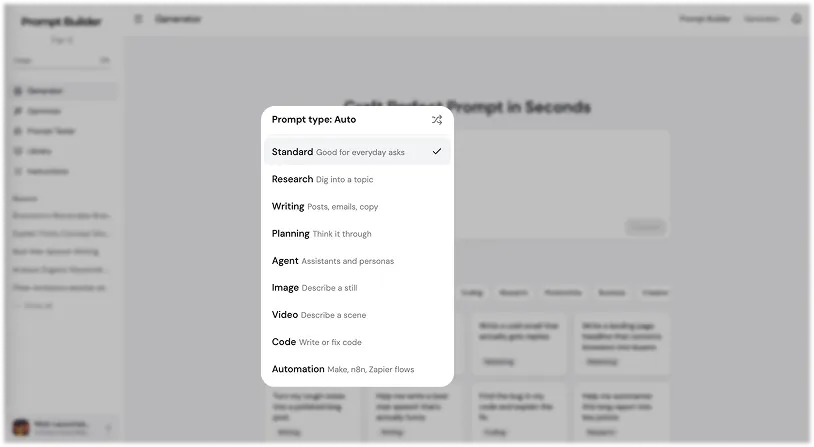
Standard
Standard is good for everyday tasks.
Use it when your task does not need a special format. It works well for simple questions, summaries, explanations, rewriting, brainstorming, and general requests.
Example:
Create a short summary of this text and give me 3 key points.
Research
Research is for digging into a topic.
Use it when you need to understand a subject, compare options, collect insights, analyze a market, or prepare information before making a decision.
Example:
Research the main problems users face when writing prompts for AI tools. Give me the key pain points, examples, and possible product ideas.
Writing
Writing is for posts, emails, copy, articles, landing pages, and other text tasks.
Use it when you need the AI to write something in a clear style, for a specific audience, and in a specific format.
Example:
Write a short email to new users explaining how Prompt Builder helps them create better prompts for ChatGPT, Claude, and Gemini.
Planning
Planning is for thinking through a task step by step.
Use it when you need a plan, roadmap, checklist, content calendar, launch plan, product plan, or workflow.
Example:
Create a 14-day content plan for launching a new AI tool on X and LinkedIn.
Agent
Agent is for assistants and personas.
Use it when you want to create a specific AI role, such as a marketing assistant, SEO expert, customer support assistant, sales coach, product manager, or research analyst.
Example:
Create a prompt for an AI marketing assistant that helps SaaS founders write landing page copy, ad angles, and email campaigns.
Image
Image is for describing a still image.
Use it when you want to generate an image with tools like Midjourney, DALL-E, Flux, Leonardo, or other image models. It helps describe the subject, style, background, lighting, composition, and details.
Example:
Create a prompt for a clean SaaS product preview image with a white background, glassmorphism cards, and a modern interface.
Video
Video is for describing a scene.
Use it when you need a prompt for AI video tools. It helps describe the scene, camera movement, action, lighting, mood, and visual style.
Example:
Create a prompt for a 10-second video showing an AI tool turning a rough idea into a structured prompt on a clean SaaS interface.
Code
Code is for writing, fixing, or explaining code.
Use it when you need help with bugs, functions, scripts, APIs, app logic, SQL, frontend code, backend code, or technical explanations.
Example:
Write a JavaScript function that validates an email address and returns a clear error message if the email is invalid.
Automation
Automation is for Make, n8n, Zapier, and workflow tools.
Use it when you want to build an automation flow, connect apps, process data, send notifications, update spreadsheets, or create repeated workflows.
Example:
Create a Zapier workflow that takes a new Typeform response, adds it to Google Sheets, sends a Slack notification, and creates a Gmail draft.
2. Choose an AI Model
After choosing the Prompt Type, you can choose the AI model.
By default, Prompt Builder uses Universal mode.
Universal mode is the safest option if you do not want to adapt your prompt to one specific model. It works for most common tasks and creates a prompt that can be used across different AI tools.
But AI models are not the same. They can understand instructions differently, structure answers differently, handle context differently, and perform better on different task types.
That is why Prompt Builder lets you choose the model you want to use.
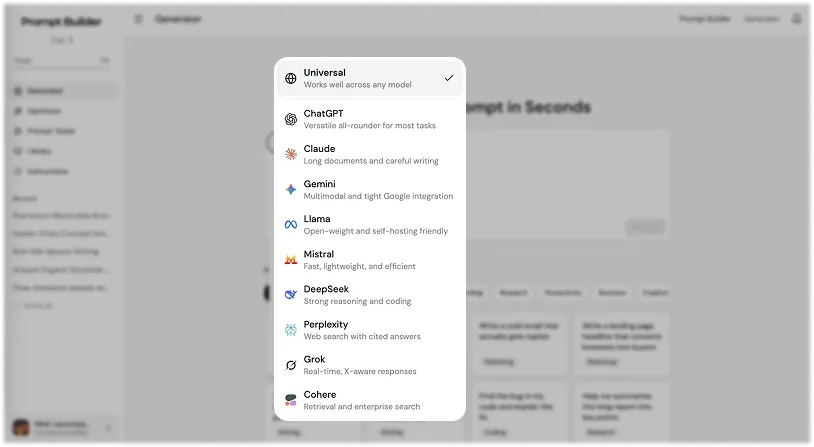
ChatGPT
ChatGPT is the most versatile option for general prompting.
It works well when your task needs a clear balance between writing, reasoning, coding, brainstorming, explanation, and practical output. ChatGPT usually responds well to prompts that include a clear task, useful context, format instructions, tone, and constraints.
From a prompting point of view, ChatGPT is a good default model when you need a flexible prompt that can handle different types of work. It is especially useful when you want the AI to move from idea to structured output quickly.
Best for:
- Everyday prompts
- Writing and rewriting
- Brainstorming
- Marketing tasks
- Coding help
- Step-by-step explanations
- General business tasks
Claude
Claude is strong for long documents, careful writing, and structured thinking.
It usually works well when the prompt includes a lot of context, source material, notes, transcripts, or user feedback. Claude is good at keeping the answer clean, organized, and easy to read.
From a prompting point of view, Claude is useful when quality of writing and clarity matter more than speed. It is also a good choice when you want the model to analyze information carefully and avoid messy output.
Best for:
- Long-form writing
- Document analysis
- User feedback analysis
- Clear summaries
- Business reports
- Careful rewriting
- Structured reasoning
Gemini
Gemini is strong for multimodal tasks and Google-related workflows.
It is useful when the task may include text, images, files, video, or information from the Google ecosystem. Gemini is also a good option when your prompt needs to work with large amounts of context.
From a prompting point of view, Gemini benefits from clear instructions about what input it should focus on and what type of output you want. It is useful when the task is not only text-based.
Best for:
- Multimodal prompts
- File-based tasks
- Image understanding
- Video-related tasks
- Google Workspace workflows
- Long context tasks
- Research and productivity tasks
Llama
Llama is useful for open-weight and self-hosted AI workflows.
It is a good choice when the user needs more control over the model, wants to run AI locally, or wants to build prompts for a custom AI product. Llama is often used by developers, builders, and teams that care about flexibility and deployment control.
From a prompting point of view, Llama prompts should be clear, direct, and structured. It is better to avoid vague instructions and give the model a specific role, task, input, and output format.
Best for:
- Open-weight AI workflows
- Self-hosted assistants
- Custom AI products
- Developer experiments
- Local AI usage
- Private workflows
- Fine-tuned models
Mistral
Mistral is strong for fast, efficient, and practical AI workflows.
It is often a good fit for developer tasks, business automation, multilingual use cases, and production AI systems where speed and efficiency matter.
From a prompting point of view, Mistral works best with concise prompts that are direct and well-structured. It is useful when you need the model to follow a clear task without adding too much extra text.
Best for:
- Fast responses
- Lightweight AI workflows
- Developer tasks
- Business automation
- Multilingual prompts
- Enterprise workflows
- Custom assistants
DeepSeek
DeepSeek is strong for reasoning, coding, and technical problem solving.
It is useful when the task needs logic, step-by-step thinking, math, code generation, debugging, or technical analysis. DeepSeek is also a good option when the prompt needs the model to break a problem into smaller parts.
From a prompting point of view, DeepSeek works well when the task is specific and the expected reasoning process is clear. It is better to give it the problem, constraints, expected output, and any rules it must follow.
Best for:
- Coding
- Debugging
- Technical prompts
- Math and logic
- Reasoning tasks
- Problem solving
- Agent workflows
Perplexity
Perplexity is strong for web search and source-based answers.
It is useful when the task needs fresh information, citations, fact checking, market research, competitor research, or quick answers based on current sources.
From a prompting point of view, Perplexity prompts should clearly say what information you need, what sources matter, how recent the information should be, and how the answer should be structured.
Best for:
- Web research
- Cited answers
- Fact checking
- Competitor analysis
- Market research
- Trend research
- Current information
Grok
Grok is useful for real-time topics, X-aware context, trends, and fast responses.
It is a good choice when the prompt is connected to current discussions, social media, news, memes, public conversations, or fast-moving topics.
From a prompting point of view, Grok works best when the prompt clearly explains what trend, topic, audience, or platform context matters. It is useful when you want the answer to feel closer to current online conversations.
Best for:
- Real-time topics
- X and social media context
- Trend analysis
- Public discussions
- Fast idea generation
- Creative angles
- Current events
Cohere
Cohere is strong for retrieval, enterprise search, and business knowledge workflows.
It is useful when the task is connected to internal documents, knowledge bases, search, support automation, RAG workflows, and enterprise AI systems.
From a prompting point of view, Cohere is good when the prompt needs to retrieve, rank, summarize, or answer based on company information. The prompt should clearly define the data source, user question, answer format, and rules for using the retrieved information.
Best for:
- Enterprise search
- RAG workflows
- Internal knowledge bases
- Support automation
- Document retrieval
- Business assistants
- Search-based AI systems
How to Choose the Right Model
Use Universal if you want one prompt that can work across most AI models.
Use ChatGPT if you need a flexible all-round model for most tasks.
Use Claude if you need careful writing, long documents, or structured analysis.
Use Gemini if your task includes files, images, video, or Google workflows.
Use Llama if you need open-weight, self-hosted, or custom AI workflows.
Use Mistral if you need fast, efficient, and practical prompts for production use.
Use DeepSeek if your task is technical, logical, code-heavy, or reasoning-heavy.
Use Perplexity if you need web research, sources, and current information.
Use Grok if your task depends on trends, X, real-time topics, or social context.
Use Cohere if your task is about retrieval, enterprise search, or internal knowledge.
3. Add Your Prompt Idea
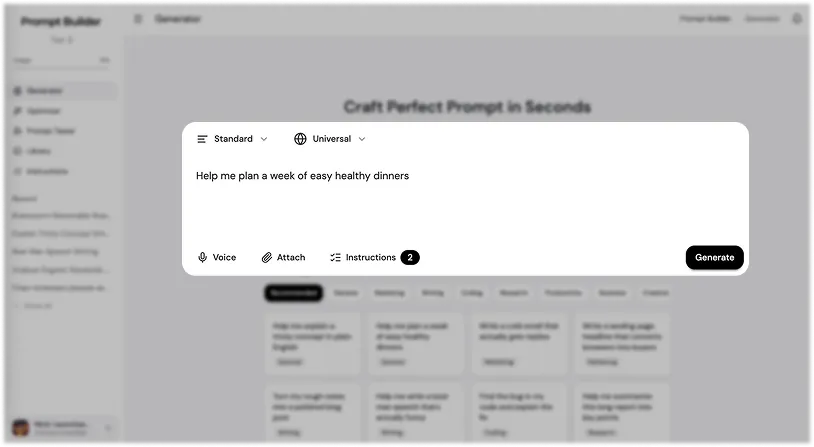
After choosing the Prompt Type and AI model, you can add your idea.
You can type your request manually or use voice input.
Voice input is useful when you want to explain your task quickly without typing. Just say what you need in your own words. It does not have to be perfect. You can describe the task naturally, and Prompt Builder will help turn it into a clear and structured prompt.
This is helpful when you have an idea in your head, but do not want to spend time writing the full prompt manually.
For example, you can simply say what you want to create, who it is for, what format you need, and what result you expect.
4. Attach Files or Images
You can also attach documents or images to your prompt.
This is useful when your task depends on extra context. For example, you can add a document, screenshot, image, text file, brief, report, notes, or other materials.
You can attach up to 10 files or images.
This helps the AI understand your task better. Instead of explaining everything manually, you can upload the material and ask Prompt Builder to create a prompt based on it.
Use attachments when you want to:
- Analyze a document
- Rewrite text from a file
- Create a summary
- Work with screenshots
- Describe or improve an image prompt
- Turn notes into a clear task
- Create content based on an existing brief
- Build a prompt from real project materials
The more useful context you add, the better the final prompt can be.
5. Use Custom Instructions
You can also create your own instructions and use them when generating prompts. This is useful if you often need the same tone, format, rules, audience, or writing style. You can quickly turn instructions on or off depending on the task, so you do not have to repeat the same details every time.
6. Use Prompt Suggestions
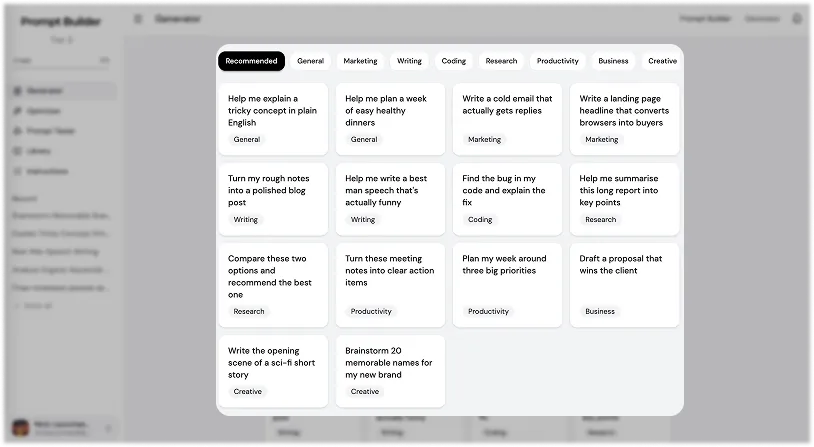
Below the main input area, you will also see Prompt Suggestions.
Prompt Suggestions are ready-made ideas divided by categories. They help you start faster when you are not sure what to write.
You can use them as a starting point for your own prompt. Choose a suggestion, edit it for your task, add more details if needed, and then generate the final prompt.
This is useful when you do not want to start from a blank page.
Prompt Suggestions can help with different tasks, such as writing, research, planning, marketing, content, coding, images, videos, automation, and more.
7. Generate Your Prompt
When everything is ready, enter your idea and click Generate.
Prompt Builder will take your rough input and turn it into a high-quality prompt.
The final prompt will be more structured, more detailed, and easier for the AI model to understand.
You can then copy it and use it in ChatGPT, Claude, Gemini, Perplexity, Grok, or another AI tool.
The main idea is simple:
You give Prompt Builder your rough idea. Prompt Builder gives you a better prompt.
This helps you save time, avoid vague requests, and get better answers from AI models.
Final Tip
You do not need to write a perfect prompt from the start.
Start with your rough idea. Choose the right Prompt Type. Choose the AI model. Add files or images if you need more context. Use voice input if it is faster. Check Prompt Suggestions if you need ideas.
Then click Generate.
Prompt Builder will help you turn a simple idea into a clear prompt that is easier for AI models to understand and follow.
More Walkthroughs
Prompt Generator Part 2: Working With Your Prompt
The prompt workspace: review your input, manage context, switch versions, change settings, fill placeholder fields, then edit, export, rate, and save your prompt.
Prompt Generator Part 3: Follow-Up and Improve
The two most useful workspace features in depth: Follow-Up Prompt builds the next step in your task, and Improve Your Prompt sharpens each prompt with targeted questions.
Prompt Library
Your personal workspace to store, organize, test, and reuse prompts: save your best, run them instantly, filter by category, tags, and model, and use the community library.
Optimizer and Prompt Tester
Two sections for working with prompts after you create them: Optimizer improves an existing prompt with guiding questions, and Prompt Tester runs prompts across AI models.
AI Prompt Generator
Turn a rough goal into a model-ready prompt in seconds