
After you choose your idea, write a rough prompt, and click Generate, Prompt Builder will take you to the next screen.
This is the prompt workspace.
Here you can review your original idea, improve the prompt, manage context, create new versions, and prepare the final prompt for use.
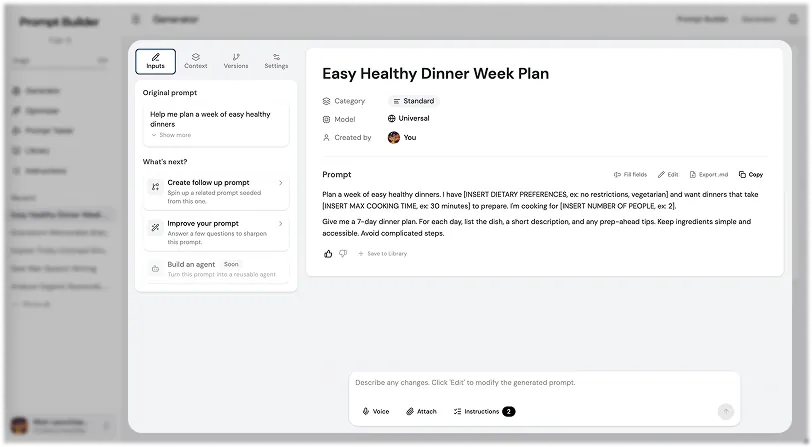
Input
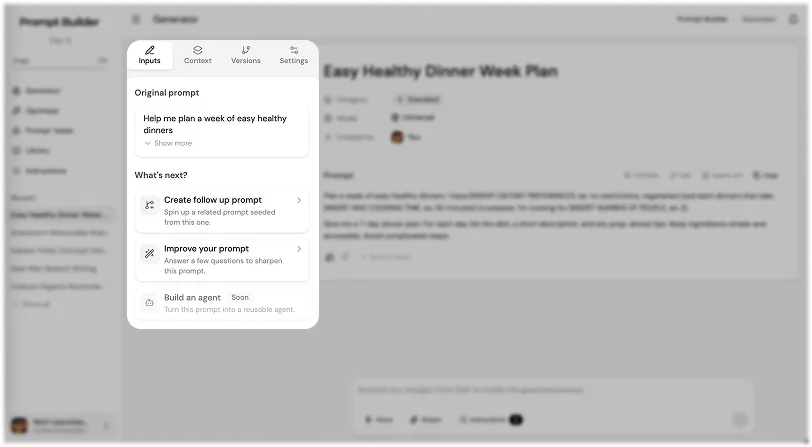
The Input section shows your original rough prompt.
This is the prompt idea you entered on the first screen before generation.
It is useful because you can always see where you started. You can compare your rough input with the improved prompt that Prompt Builder creates for you.
Create Follow-Up Prompt
Create Follow-Up Prompt helps you create the next prompt after your first result.
This is useful when your task has more than one step.
For example, if your first prompt is about creating a weekly meal plan, a follow-up prompt can help you continue the task. It can suggest the next step, such as creating a shopping list, making a cooking schedule, or adjusting the meal plan for your budget.
Follow-up prompts help you move from one task to the next without starting from zero every time.
Improve Your Prompt
Improve Your Prompt helps you make your prompt more detailed and more accurate: Instead of guessing what is missing, Prompt Builder asks you useful questions based on your task.
These questions help clarify:
- the goal
- audience
- format
- tone
- context
- limits
- expected result.
This is useful when your first idea is too broad or not clear enough. You answer the questions, and Prompt Builder uses your answers to create a stronger prompt.
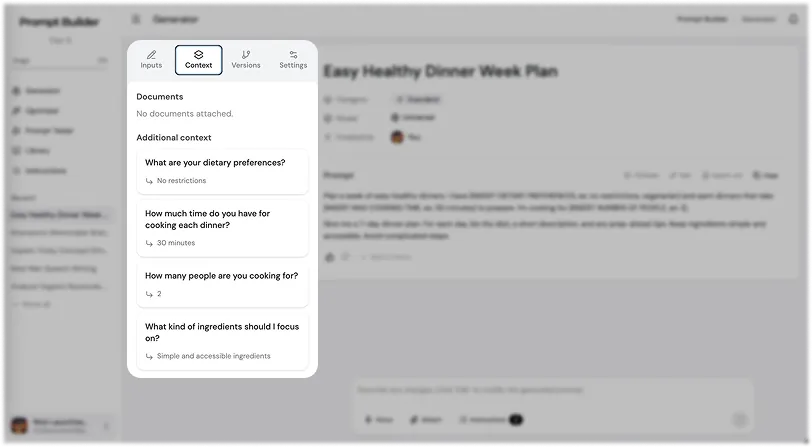
Context
The Context section stores the extra information connected to your task.
This can include documents, images, notes, files, or other materials you added before generation.
Context helps Prompt Builder understand the task better. If your prompt depends on a specific document, screenshot, brief, or image, you can keep it in this section and use it while working on the prompt.
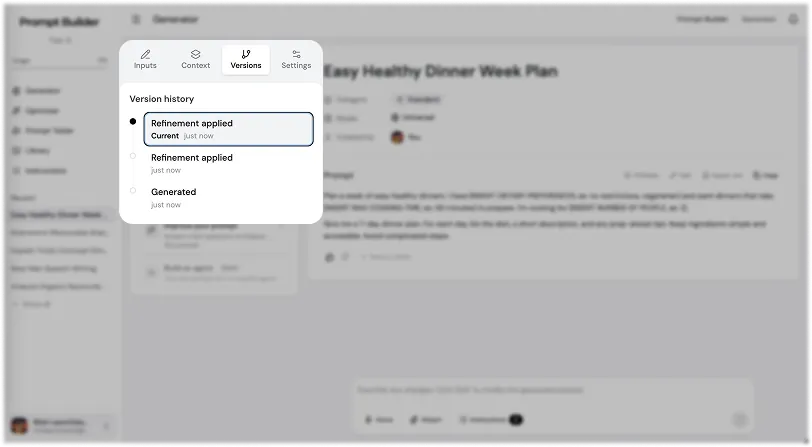
Versions
The Versions section stores different versions of your prompt.
This is useful when you change the prompt several times and want to keep track of your progress.
You can test different versions, compare them, and return to an earlier version if needed.
This helps you avoid losing a good prompt while editing.
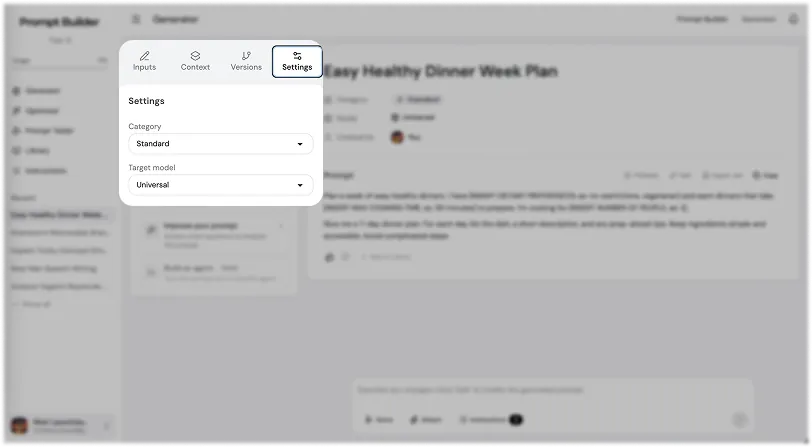
Settings
The Settings section lets you adjust the Prompt Type and AI Model.
This works the same way as on the first screen.
You can change the Prompt Type if your task has changed. You can also change the AI model if you want the prompt to be better adapted for a specific tool.
For example, you may start with a general prompt and later decide to adapt it for writing, research, code, image generation, or another task type.
Main Workspace
The main workspace is where Prompt Builder creates your prompt.
This is the main area for editing, reviewing, improving, and preparing the final version.
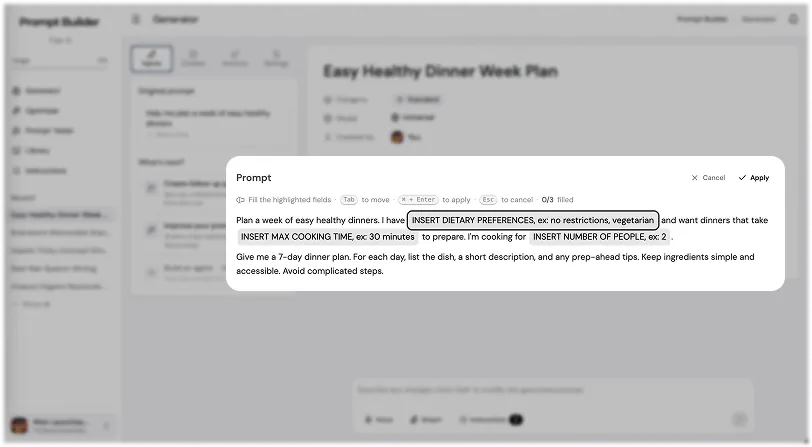
Pay attention to fields inside square brackets, like this:
[company name] [target audience] [product description] [desired tone]
These fields are placeholders.
You need to fill them before using the prompt. They make the prompt more flexible, but the AI model needs real information to give you a good result.
To fill these fields faster, click the Fill Fields button.
Prompt Builder will help you complete the missing parts so the final prompt is ready to use.
Edit, Export, Rate, and Save
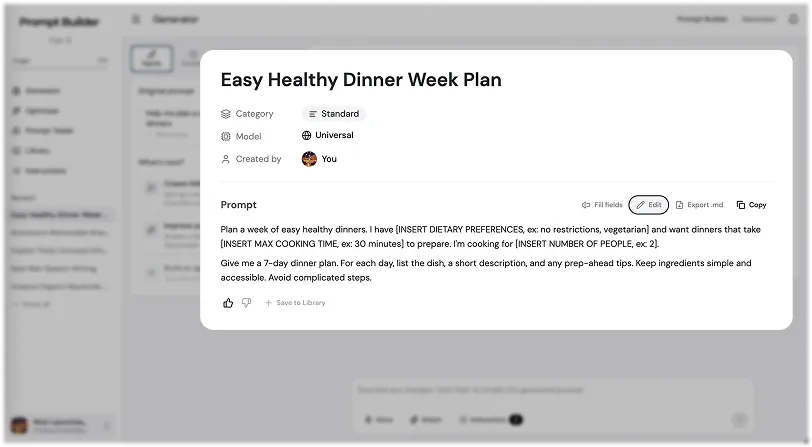
You can:
- also work with the final prompt directly from this screen.
- fully edit the prompt if you want to change the structure, tone, details, or instructions.
- export the prompt if you want to use it outside Prompt Builder.
- like or dislike the result. This helps you mark whether the prompt was useful.
- save the prompt to your prompt library.
Saving prompts is useful when you want to reuse them later, organize your best prompts, or build your own collection for repeated tasks.
Final Tip
The prompt workspace is where your rough idea becomes a usable prompt.
You can improve it, add context, create follow-up prompts, manage versions, fill missing fields, export the result, and save it to your library.
This helps you not only generate one prompt, but build a better workflow around your task.
More Walkthroughs
How to Use the Generator in Prompt Builder
The Generator starting screen: choose a Prompt Type, pick an AI model, add your idea by text or voice, attach files, and generate a clear, structured prompt.
Prompt Generator Part 3: Follow-Up and Improve
The two most useful workspace features in depth: Follow-Up Prompt builds the next step in your task, and Improve Your Prompt sharpens each prompt with targeted questions.
Prompt Library
Your personal workspace to store, organize, test, and reuse prompts: save your best, run them instantly, filter by category, tags, and model, and use the community library.
Optimizer and Prompt Tester
Two sections for working with prompts after you create them: Optimizer improves an existing prompt with guiding questions, and Prompt Tester runs prompts across AI models.
AI Prompt Generator
Turn a rough goal into a model-ready prompt in seconds