
Prompt Builder also has two useful sections for working with prompts after you create them: Optimizer and Prompt Tester. These tools help you improve your prompt and test how it works before using it in your real task.
Optimizer
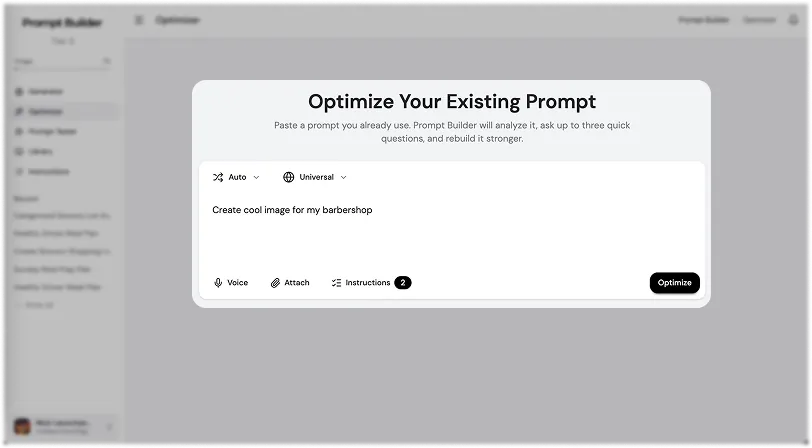
Optimizer is the section where you can improve and optimize an existing prompt. If you already have a prompt, but the result is too general, unclear, or not strong enough, you can use Optimizer to make it better.
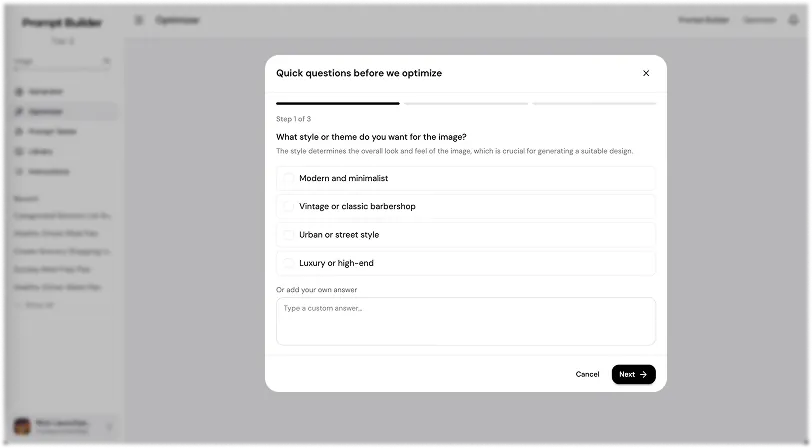
The process is simple. Add your prompt, answer the guiding questions, and Prompt Builder will help improve it for better AI results. These questions help clarify what the prompt is missing: the goal, context, audience, format, tone, limits, examples, or expected output.
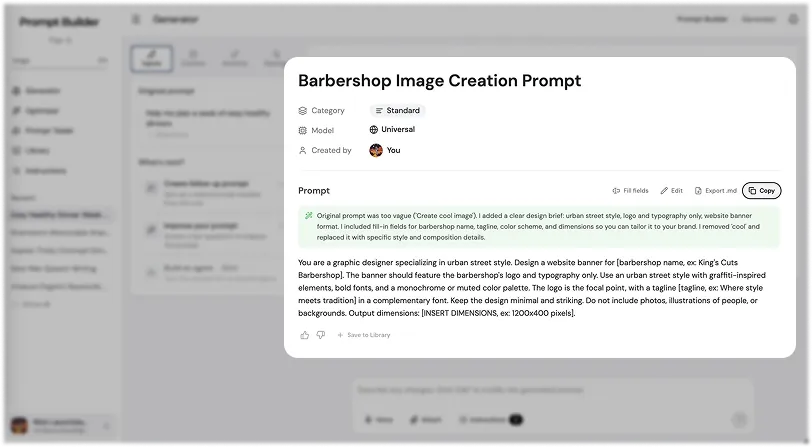
This is useful because many prompts look fine at first, but still miss important details. A weak prompt can give you a weak answer, even if the AI model is good. Optimizer helps make the prompt more specific, structured, and easier for the model to follow.
In Optimizer, you can work almost the same way as in Generator. You can choose the Prompt Type, select the AI model, add your own instructions, type your prompt manually, use voice input, and attach files or documents if you need more context.
Use Optimizer when you already have a prompt and want to make it clearer, stronger, and more useful before sending it to an AI model.
Prompt Tester
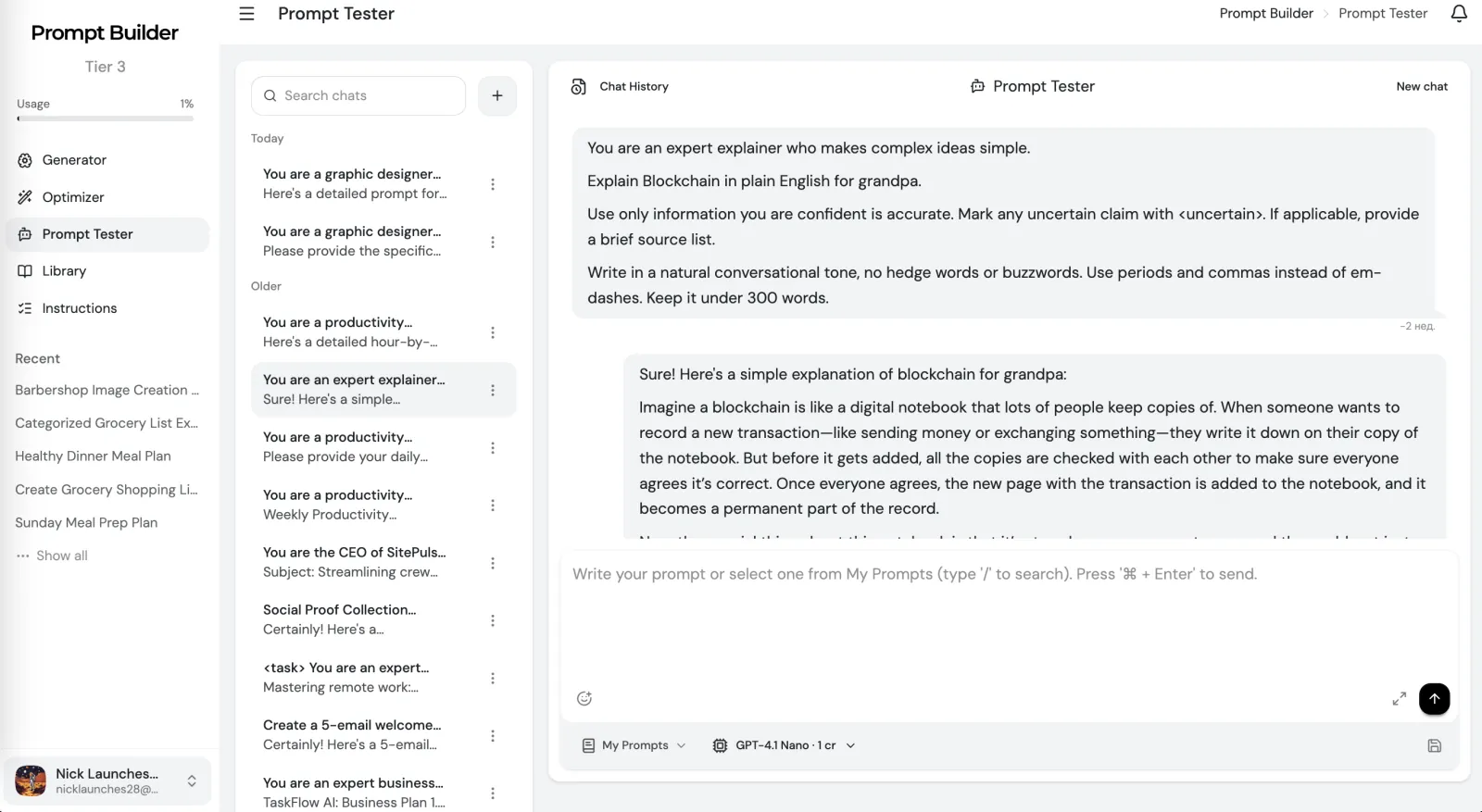
Prompt Tester is the section where you can test your prompts directly inside Prompt Builder. After you create or optimize a prompt, you do not need to leave the platform right away. You can test the prompt, check the result, and see if it works the way you expected.
This is useful because a prompt can look good on paper, but the real test is the output. Prompt Tester helps you quickly understand whether the prompt gives the right answer, follows the format, uses the correct tone, and includes the details you need.
On the left side, you can see your dialogue history. This helps you keep track of previous tests and return to earlier conversations if needed.
You can also choose the AI model you want to test with. This is important because the same prompt can work differently in different models. Testing helps you understand if the prompt is ready, or if it still needs changes.
You can test prompts from your own library, or choose prompts from the community library. This makes it easier to reuse your saved prompts, explore examples from other users, and quickly test different ideas in one workspace.
Prompt Tester is useful when you want to check the prompt before using it for real work. You can create a prompt, test it, improve it, test it again, and only then save or export the final version.
Final Tip
Use Optimizer when you want to improve the prompt. Use Prompt Tester when you want to check how the prompt works in practice. Together, these sections help you move from a rough prompt to a tested prompt that is ready to use.
More Walkthroughs
How to Use the Generator in Prompt Builder
The Generator starting screen: choose a Prompt Type, pick an AI model, add your idea by text or voice, attach files, and generate a clear, structured prompt.
Prompt Generator Part 2: Working With Your Prompt
The prompt workspace: review your input, manage context, switch versions, change settings, fill placeholder fields, then edit, export, rate, and save your prompt.
Prompt Generator Part 3: Follow-Up and Improve
The two most useful workspace features in depth: Follow-Up Prompt builds the next step in your task, and Improve Your Prompt sharpens each prompt with targeted questions.
Prompt Library
Your personal workspace to store, organize, test, and reuse prompts: save your best, run them instantly, filter by category, tags, and model, and use the community library.
AI Prompt Generator
Turn a rough goal into a model-ready prompt in seconds