
Prompt Library is your personal workspace for storing, organizing, testing, and reusing prompts. Instead of losing good prompts in chats, notes, documents, or random files, you can keep everything in one place and quickly return to the prompts that actually work.
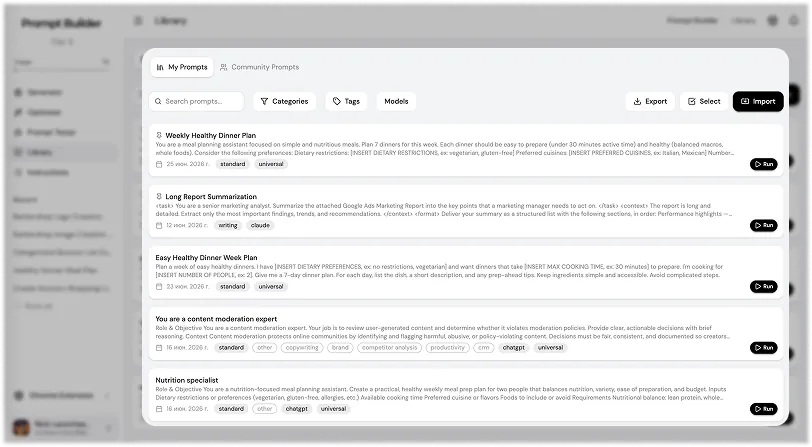
Save Your Best Prompts
Every time you create a useful prompt, you can save it to your library. This is helpful when you have prompts you use often, such as content prompts, research prompts, marketing prompts, coding prompts, image prompts, automation prompts, or internal business prompts.
The idea is simple: create once, reuse many times. You do not need to rebuild the same prompt from scratch every time you need it.
Run Prompts Instantly
One of the most useful features in the Library is the Run button. When you click Run on any prompt, Prompt Builder opens it directly in Prompt Tester, so you can immediately test the prompt and see how it works.
This makes the library more than just storage. It becomes a working prompt system. You can save a prompt, run it, test the result, improve it, and keep using the best version.
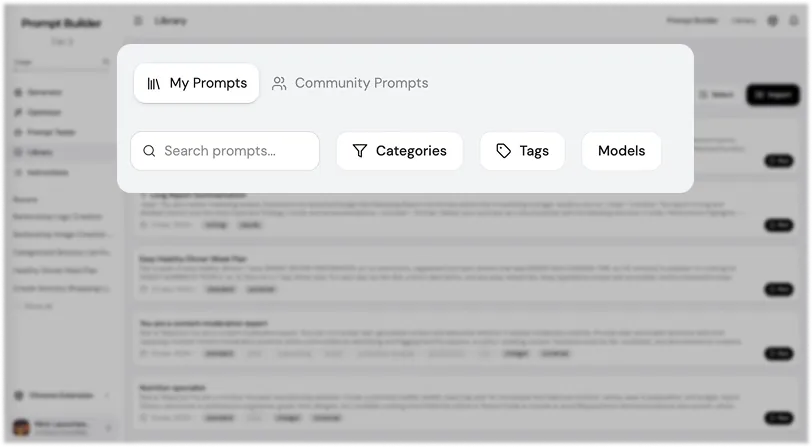
Organize Prompts by Categories, Tags, and Models
As your prompt collection grows, organization becomes important. In Prompt Library, you can organize prompts by category, tags, and AI model.
Categories help you separate prompts by task type, for example writing, research, marketing, code, image generation, video, automation, or business workflows. Tags help you filter prompts faster and find exactly what you need. Model labels help you understand which AI model the prompt was created for or works best with.
This is useful when you have many prompts and do not want to waste time searching manually.
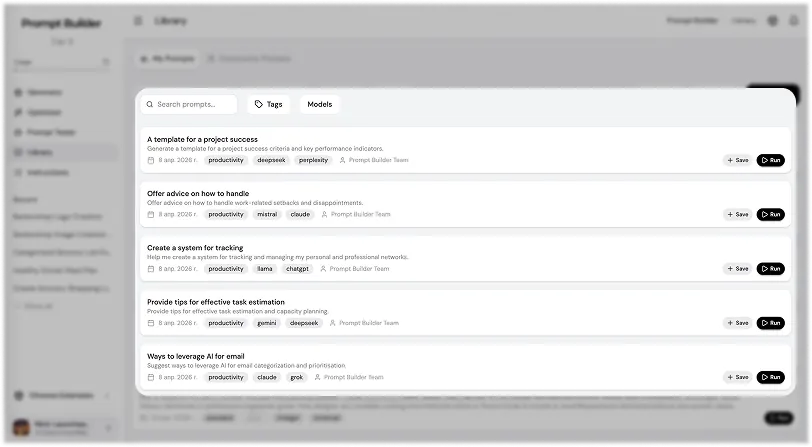
Use the Community Prompt Library
Prompt Builder also has a Community Prompt Library. This is a separate section where you can search for prompts created for different niches, tasks, and use cases.
You can use community prompts as ready-made starting points. Find a prompt, open it, test it, edit it for your task, and save your own version if needed.
Soon, you will also be able to share your own prompts with the community. This means your best prompts can help other users, and you can also discover useful prompts created by others.
Import and Export Prompt Libraries
Prompt Library supports export in JSON, CSV, and Markdown formats. This is useful if you want to back up your prompts, move them to another workspace, share them with your team, or use them outside Prompt Builder.
You can also import prompt libraries from other services. If you already have a collection of prompts somewhere else, you do not need to rebuild everything manually. Import your library and continue working inside Prompt Builder.
Pin Important Prompts
Some prompts are used more often than others. For these prompts, you can use Pin and Unpin.
Pinned prompts are easier to access, so you can keep your most important or most used prompts close. This is useful for daily workflows, repeated client work, content systems, research tasks, or prompts you use as templates.
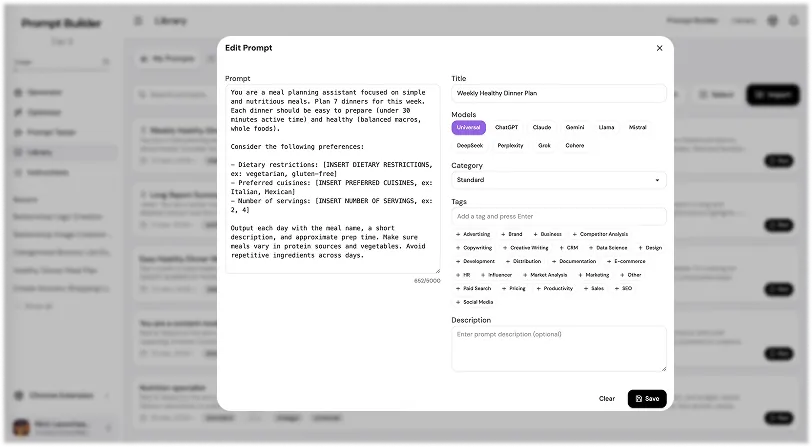
Edit Every Prompt Separately
Each prompt in your library can be edited separately. You can rewrite the prompt, update the structure, assign an AI model, choose a category, add tags, and write a short description.
Descriptions are especially useful when your library grows. They help you quickly understand what the prompt is for, when to use it, and what result it should create.
Why Prompt Library Is Useful
Prompt Library helps you turn random prompts into an organized workflow. You can create prompts, save them, test them, improve them, sort them, export them, and reuse them whenever you need.
It saves time, keeps your best prompts in one place, and helps you build a reusable prompt system for your work.
More Walkthroughs
How to Use the Generator in Prompt Builder
The Generator starting screen: choose a Prompt Type, pick an AI model, add your idea by text or voice, attach files, and generate a clear, structured prompt.
Prompt Generator Part 2: Working With Your Prompt
The prompt workspace: review your input, manage context, switch versions, change settings, fill placeholder fields, then edit, export, rate, and save your prompt.
Prompt Generator Part 3: Follow-Up and Improve
The two most useful workspace features in depth: Follow-Up Prompt builds the next step in your task, and Improve Your Prompt sharpens each prompt with targeted questions.
Optimizer and Prompt Tester
Two sections for working with prompts after you create them: Optimizer improves an existing prompt with guiding questions, and Prompt Tester runs prompts across AI models.
AI Prompt Generator
Turn a rough goal into a model-ready prompt in seconds